The manual
Documentation
Step by step, in the order you actually meet the product — train a voice, write with it, talk to it, then the instruments that judge and extend it. Looking for the short version? The feature list is the inventory.
Contents
- 1. Start here — train a voice
- 2. Write — put the voice to work
- 3. What to do with a result
- 4. Chat — a conversation with your written self
- 5. Overview — your beat, mapped
- 6. Voice X-ray — where a draft stops sounding like you
- 7. Briefing & Evaluate — your morning reading desk
- 8. The rest of the board
- 9. The Weeds — settings and internals
- 10. Where all this runs
1. Start here — train a voice
Run the free Voice Check-up
From the landing page, paste 1,000+ words (or drop in your Substack/RSS link) and hit Send. You get a measured report of your voice — sentence rhythm, punctuation signature, the words that are distinctively yours — plus a copy-paste prompt for ChatGPT or Claude. No account needed.
Train your voice model
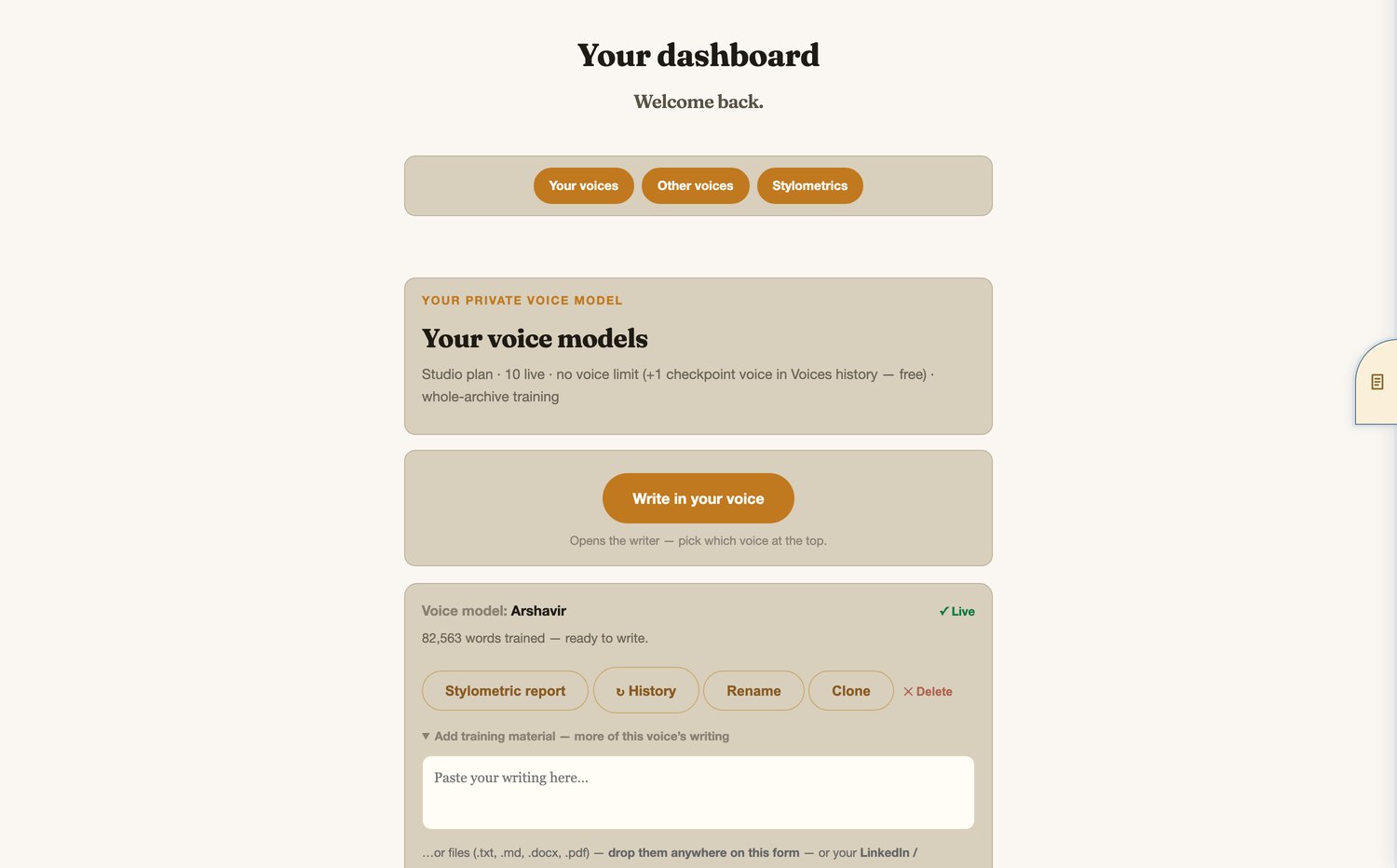
On the Dashboard, open Add training material on your voice card and give it your writing: paste it, drop files on the form (.txt, .md, .docx, .pdf), point it at a Substack/RSS feed, or upload a LinkedIn/Facebook data export. Training runs on our GPUs and takes a few minutes.
Feed it more, always
The single biggest lever on quality is corpus size. Connect your whole archive rather than a sample — the trained voice, the scores, and the grounding all sharpen as it grows. An RSS link keeps pulling new posts automatically.
See exactly what it learned from
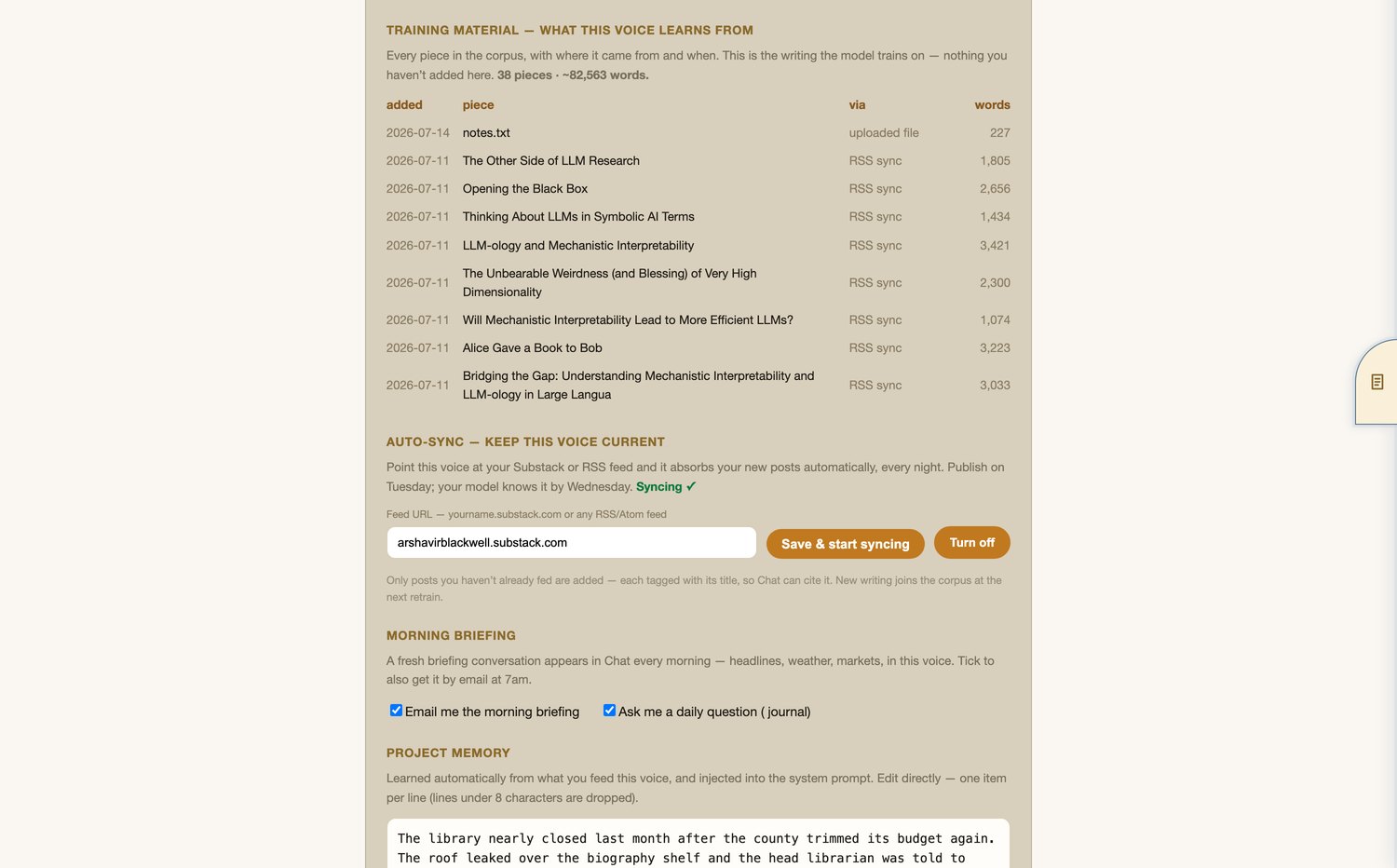
The Weeds › your voice › Training material lists every piece in the corpus: when it was added, its title, where it came from, and its word count. The model trains on nothing that is not on that list.
2. Write — put the voice to work
Pick a voice
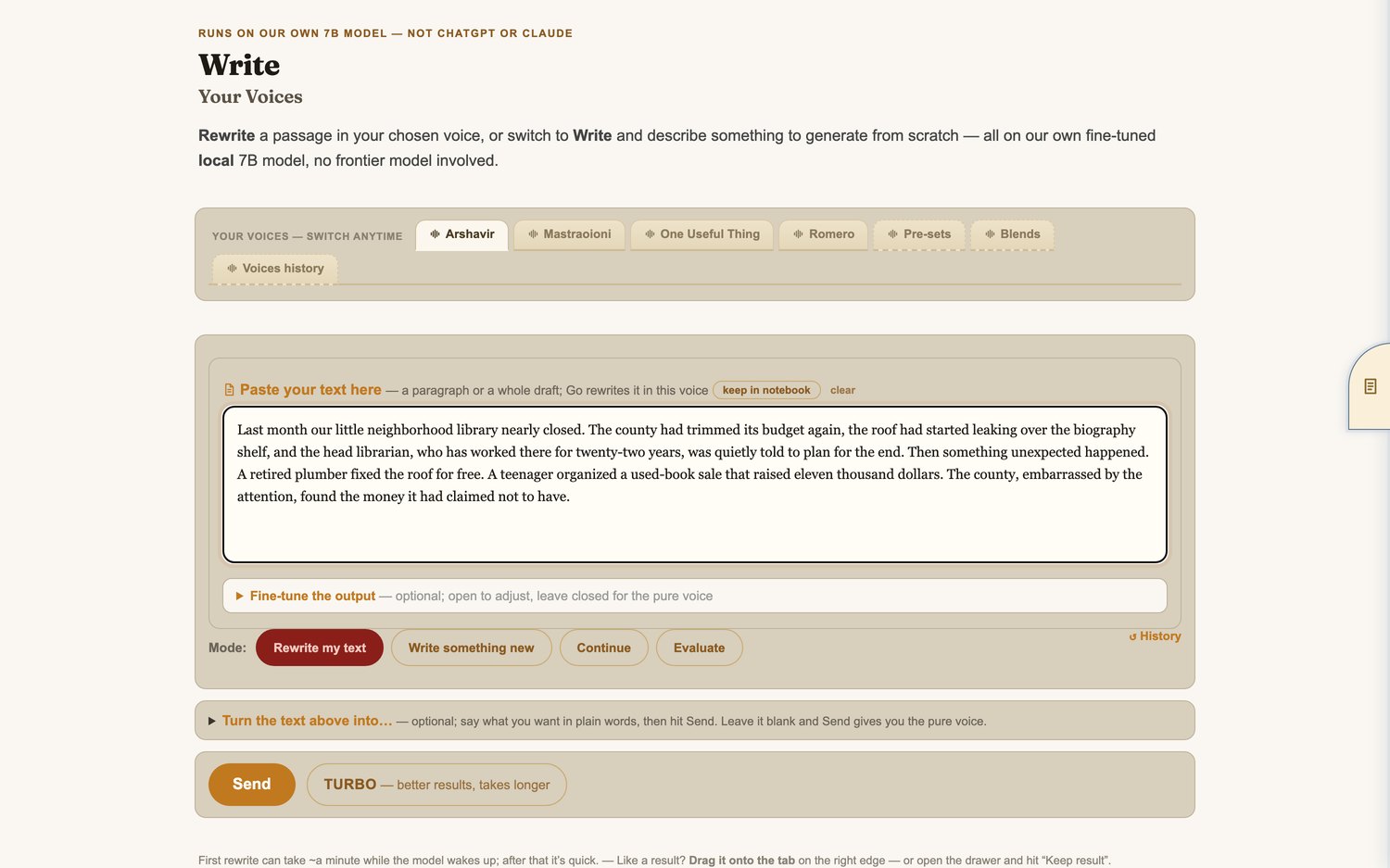
The folder tabs at the top of the Write page are your voices: your own, any you have loaded, pre-set voices (Newsroom is free; The Orator, The Analyst, The Plain-Speaker and The Storyteller come with membership), blends you have mixed, and checkpoint voices from Voices history.
Paste your text
The box sits directly under the voice tabs — paste a paragraph or a whole draft. The live voice match bar under it scores your draft against your voice as you type.
Choose a mode
Rewrite — get your draft back in your voice. Write new — describe what you want and pick a length. Evaluate — hand the draft to a critic instead of rewriting it. In Rewrite mode, Strict facts re-rolls any rewrite that drops your numbers or names — and tells you what changed. Want it shorter? Say so before the paste: “Cut this by half:” In Write mode, Strict facts means the piece cannot invent numbers and must use the facts you gave.
Shape the output (optional)
In Rewrite mode, open with the ask and then paste — “Turn this into a punchy LinkedIn post:”, “Turn this into five email subject lines:”, “Turn this into a 5-tweet thread:”. Paste text alone and Send gives you the pure voice.
Hit Send
The first run of the day can take about a minute while the model wakes up; after that it is quick.
DRAFT vs FINAL
Two ways to send. Draft is the working copy — one quick pass in your voice, made for iterating. Final is the last pass before something goes out. Several drafts, the best kept, then the Editor reviews it and the notes are applied — but the edit lands only if it holds your facts; when it wouldn’t, the edit is declined and you still get the notes. You always receive both versions: v1 with the Editor’s notes, v2 with them applied. Use it for: anything you intend to publish; when you want the criticism visible, not just the result; when a Draft feels almost right but flat. Skip it for: routine drafting and iteration — that is what Draft is for; it is faster and had the cleaner record in testing. A second opinion, not a promise the piece is finished — read before you publish still applies.
3. What to do with a result
The bar under a result
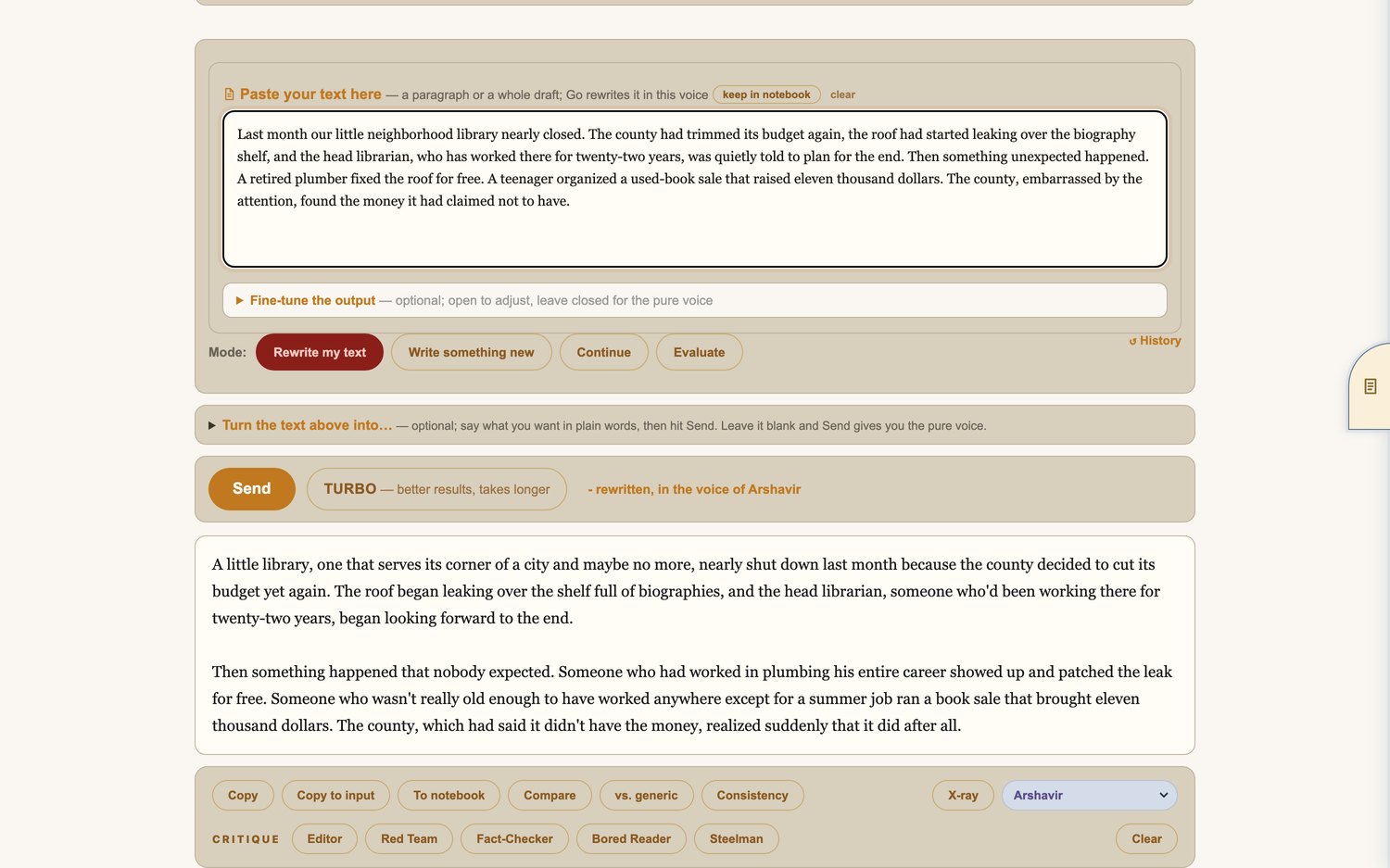
One line: Copy, then two disclosures. TOOLS holds the things you reach for occasionally — To notebook, Compare, Consistency, X-ray, and the chime. CRITIQUE holds the reading seats. The ▴ at the right folds the whole bar away to a single lip. Whatever you leave open is remembered, on this and any other machine you log in from.
How it holds your facts
Three layers. The voice itself is trained not to invent where the check-up shows it needs it — measured before and after on writing it has never seen. Every rewrite runs under Strict facts (on by default): drops are re-rolled and the verdict line names what changed. And a repair pass checks your source’s specifics one by one, restoring what vanished and deleting what appeared from nowhere. Turn Strict facts OFF when changing the specifics is the point — fictionalising, anonymising names, updating figures, or using the source as a springboard; off stands every fact guard down. What no layer catches even when on: a paraphrase that bends meaning without touching a name or number — the tip below the box means what it says.
Copy · To notebook
Copy puts the result on the clipboard. To notebook keeps it in the notepad drawer — or just drag the result onto the tab at the right edge.
Compare
Compare opens the original and the current result side by side, word-diffed.
Consistency
Reads the result against everything this voice has published and flags anything that contradicts your past positions — with a quote from the draft and the piece it collides with.
X-ray
Sends the result to the Voice X-ray, scored against whichever voice you pick beside the button.
Critique — the bench
Five judgment seats, powered by our 14B: Editor (line edits and structure), Red Team (attacks the argument), Bored Reader (where attention drifts), Steelman (strengthens your case) and Check claims. One click each, and their notes gather as cards you can keep or dismiss — each locked to the draft it judged. Apply with Refine pours an Editor’s notes straight back into the writer. They give you an opinion, not a verdict — for verdicts on factual claims, use Check claims. For a whole piece rather than a passage, the Critique desk runs the seats side by side and tracks whether your next draft answered them.
Check claims
Beside the bench, and a different kind of thing: it pulls each factual claim out of the piece, checks it against the web, and marks each one sourced or couldn't verify — with a one-click remove on the ones it cannot confirm. Advisory, not proof: it returns a false alarm on a real claim roughly one time in fourteen, and a fabrication with a plausible web match can still slip through. It never edits anything on its own. Also available in Evaluate mode, where it checks whatever is in the paste box.
Clear
Bottom right of the box — wipes the result and everything the bench said about it.
4. Chat — a conversation with your written self
Ask it anything
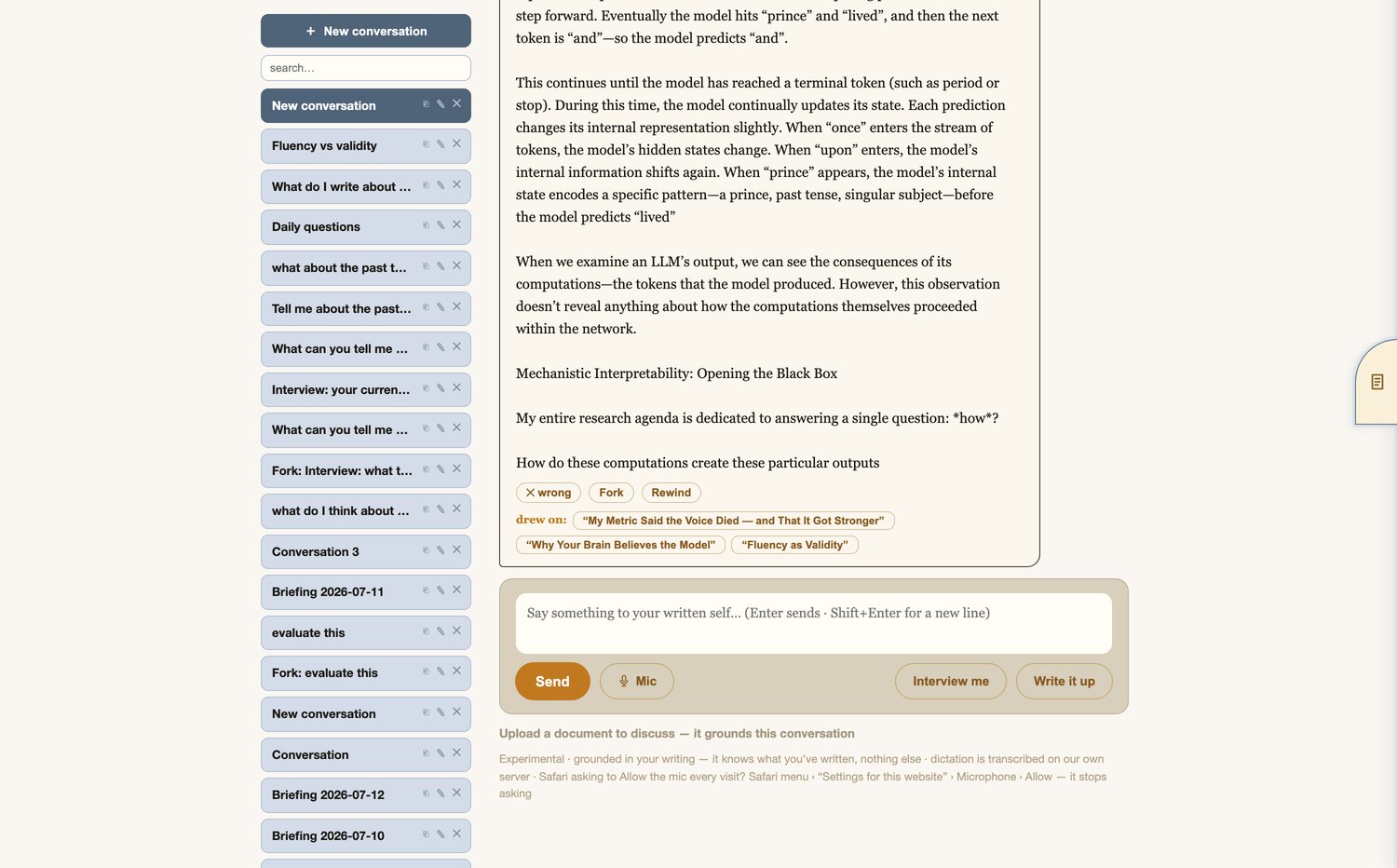
Chat answers from your own posts and what it knows about you, in your cadence. Ask what you think about something. Argue with it.
Receipts
Under a reply you will see drew on: and the exact pieces it consulted. Click one to read the passage behind it. The corpus is a library it actually opens, not a mood it is in.
Dictate
Click the mic and talk — the words type themselves in as you speak, transcribed on our own server. Return closes the mic and leaves the transcript in the box; Return again sends it. If Safari asks for the microphone every visit, set Safari › Settings for this website › Microphone › Allow.
Fork and Rewind
Fork splits a new conversation from any message, leaving the original intact. Rewind rolls this conversation back to before that exchange and puts your question back in the box to edit and retry.
Interview me
It asks, you answer — one sharp question at a time. Your answers can be appended straight to the voice's training material with Add to training.
Write it up
Turns the conversation into a draft in the Write studio, in your voice.
Upload a document
Open the expander under the composer to ground the conversation in a specific document.
5. Overview — your beat, mapped
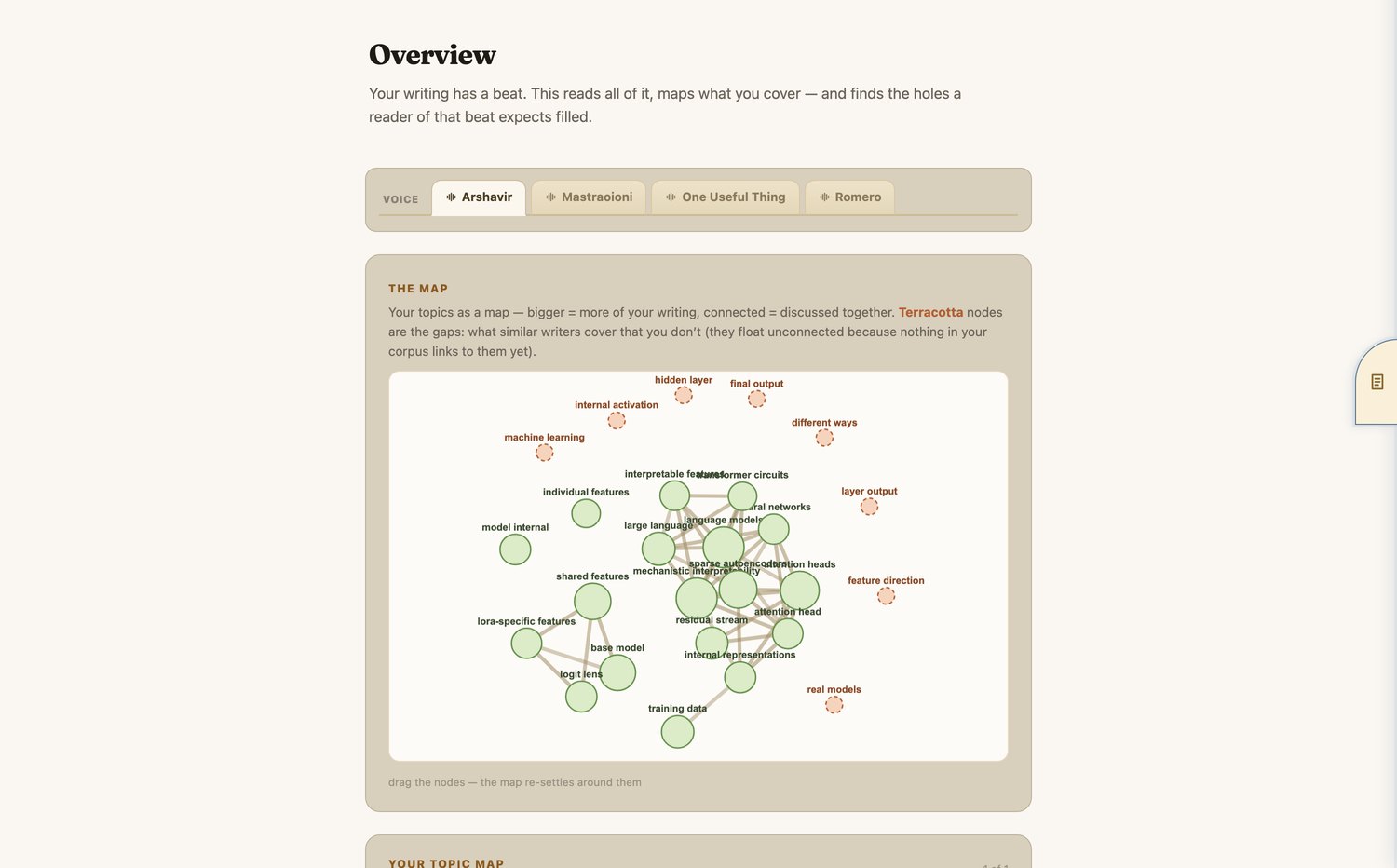
Network graph
Your topics as a concept network: bigger means more of your writing, connected means discussed together.
Your topic map
A self-organizing map trained on your own writing — every topic placed so related ones sit together, each region tinted its own colour, deeper shade meaning more of your writing. Use the arrows to reshuffle the layout.
The gaps
The terracotta tags are the point: subjects writers on your beat cover that you have not written about yet. Below the map, Your coverage & gaps spells it out in prose and hands you the list.
6. Voice X-ray — where a draft stops sounding like you
Paste and X-ray
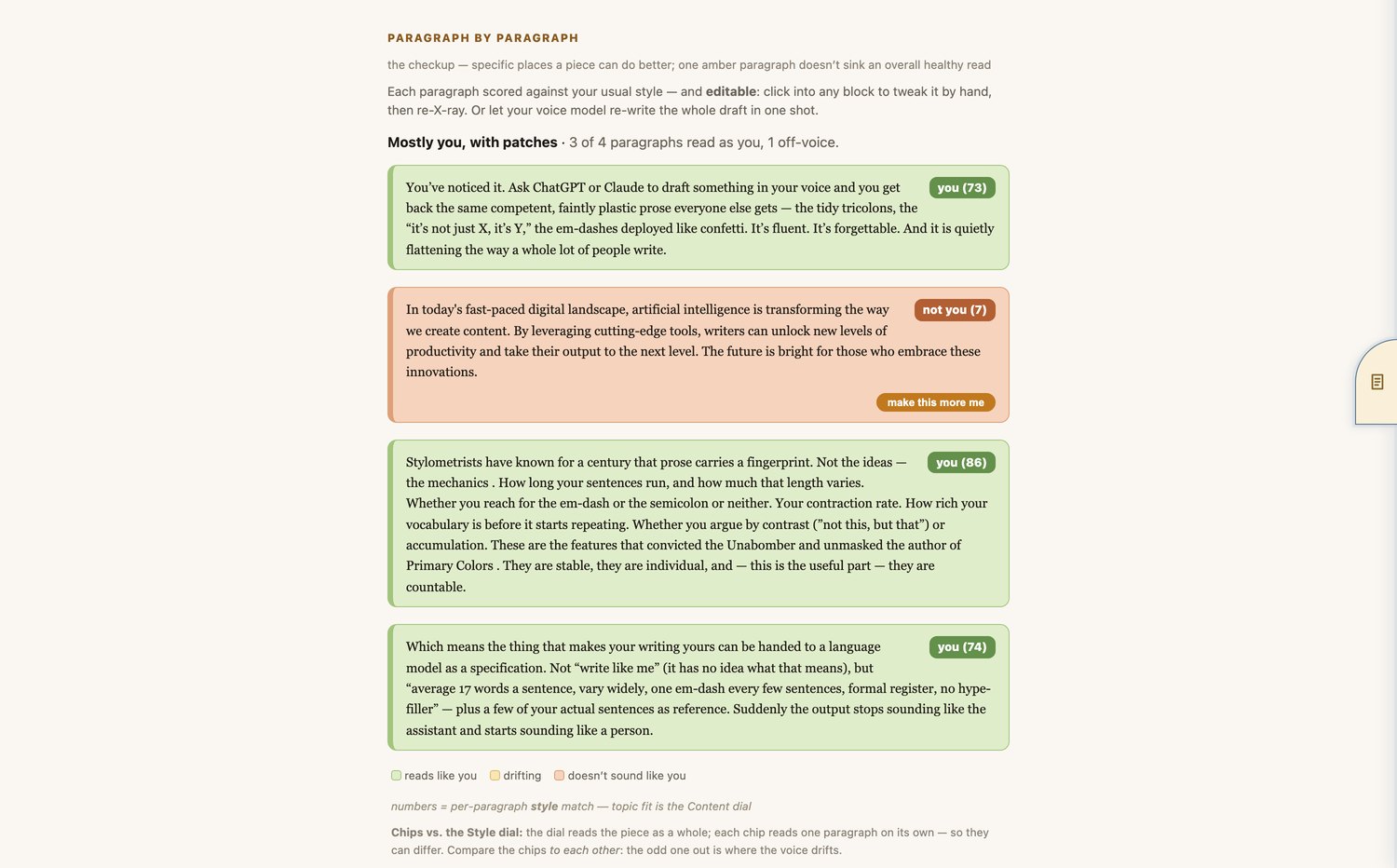
Any draft or article, scored against your writing. Works on your own drafts, on something an editor handed back, or on a suspected AI passage.
The overall read
One verdict up top, with three dials: Style is how the writing is put together — your word habits and how it sounds, whatever the topic. Content is how close the subject is to what you usually write about. Distinctiveness is the identity lineup — whether the piece reads as this voice rather than anyone else's.
Paragraph by paragraph
Every paragraph colour-coded and scored: green reads like the voice, amber is drifting, terracotta does not sound like it. Compare the chips to each other — the odd one out is where the voice drifts. Blocks are editable: fix one by hand and re-X-ray, or hit make this more me to have your voice model re-write just that paragraph.
7. Briefing & Evaluate — your morning reading desk
Your feeds
Briefing starts with the publications you actually read. In YOUR FEEDS on the Briefing page, paste any Substack, blog, or site — it finds the RSS/Atom feed itself — or hit Import list with a plain .txt of links to load dozens at once. Up to 60 feeds; past that, the page says so and asks you to make room rather than quietly dropping any.
The morning briefing
Every morning at 7 Pacific, the desk reads the last day and a half of all your feeds (stretching to three days on quiet weekends), pulls each new piece in full, and ranks it against the archive of the voice you pick as your beat. What survives lands in two tiers: on your beat, and a quieter adjacent — orbiting your beat row. The ring gauge on each item is its closeness to your archive.
Evaluate, one click, instant
Every briefing item arrives with its evaluation already computed. Hit Evaluate and a box pops up on the spot — a summary of the piece’s argument and an honest critique on its own terms — close it with the ✕. Anything evaluated once answers instantly forever; a piece the desk hasn’t met yet runs live while the ball spins next to the button.
Fetch latest posts
Below the briefing, the raw wire: the newest posts across every feed, ten a page, each with its own Evaluate. The list persists — open Briefing in a new tab tomorrow and it’s still there, no refetch.
Past briefings
The rail on the left keeps a dated archive of every morning’s briefing — one entry per day, thirty days deep. Clear it any time; today’s briefing stays.
The briefing as e-mail
Flip Send it as its own e-mail at the foot of the page and pick an hour; the briefing arrives in your inbox on schedule, separate from anything else the app sends.
The Evaluate page
For a single piece on demand: give the Evaluate page a URL, paste the text, or drop a PDF, DOC, MD, or TXT file anywhere on the window. Off the pill, you get the straight summary and critique. Flip Evaluate against my archive and the desk wakes your voice model and renders a verdict — WORTH IT / SKIM IT / SKIP IT — measured against what you’ve already written: does this piece add anything you haven’t said? Every verdict is kept in the PAST VERDICTS rail.
Instant verdicts
The morning build does the reading ahead of you: every briefing item — and every new post on the latest-posts wire — arrives with its summary & critique already computed, so Evaluate opens in a blink instead of waking the model. An article evaluated once stays evaluated for everyone.
8. The rest of the board
Dialog
Seat two voices, give them a topic, and let them go back and forth. Interject at any pause, or leave the box empty and hit Send to let them keep going. Swap a seat between rounds. Dialogs save themselves.
Round-table / Style Prism
One question, every voice at the table answers. The Prism refracts a single paragraph through twelve classic voices at once.
Repurpose
One piece into many — a week of Notes, a launch kit, a thread — each written in your voice.
Crawl & Index
Ask a question and it becomes a web crawl scoped to your writing: results ranked by how close each page is to your content and style, a topic map of what was found, and a chat box answered only from the pages it crawled.
Targeting
Paste a post and our private 14B works out who would most want to read it — the ideal reader, the communities to reach, and a hook for each.
Mixer
A knob per voice: blend your voices with the classic authors into a brand-new one. An exact weight-space merge, ready in about a minute, no retraining — and it shows up in every picker.
The notepad
The drawer on the right edge of every page. Drag any result onto the tab, or hit Keep result. Click a note to edit it in place; it saves as you type. Download everything as a .zip from the drawer foot.
Voices history
Checkpoint voices — you, frozen as of an earlier month. Chat with who you were, or seat a past self in a Dialog against the current you.
9. The Weeds — settings and internals
About-you notes
The character sheet Chat treats as true-right-now facts. Notes inform the chat; they never train the model. Add them here or from the voice card on your Dashboard.
Training material
The full provenance list for each voice — every piece, its source, and its word count.
Everything else
Corpus, memory, continuity, house style, and the delete button that removes a voice and everything behind it.
10. Where all this runs
Your documents never leave our infrastructure
Every model in the product is ours: a fine-tuned 7B writes, a 14B judges, and everything is hosted on our own hardware. Nothing you write is sent to ChatGPT, Claude, or any third-party AI service.
A truly local build
The hosted edition is what you are using. A build that runs entirely on hardware you control is available as a consulting engagement.
Something here out of date, or a step that did not work the way it reads? Tell us — we read every note.